
Just reading? Updating together?
Prices refer to the Japanese App Store. The free first trip is per Apple Account. Read the conditions below. You can also copy parts of a plan as text.
Edit together conditionsSend an image or PDF on LINE
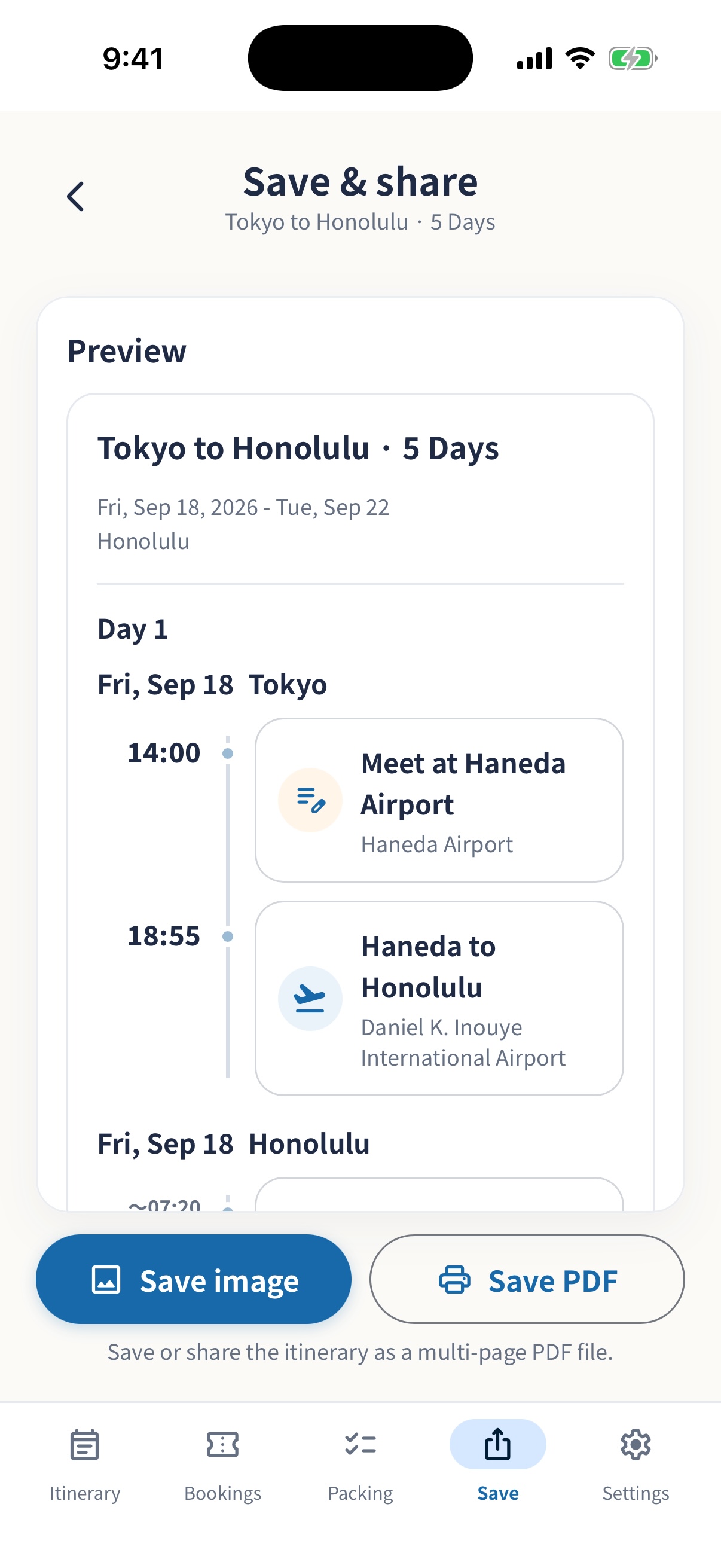
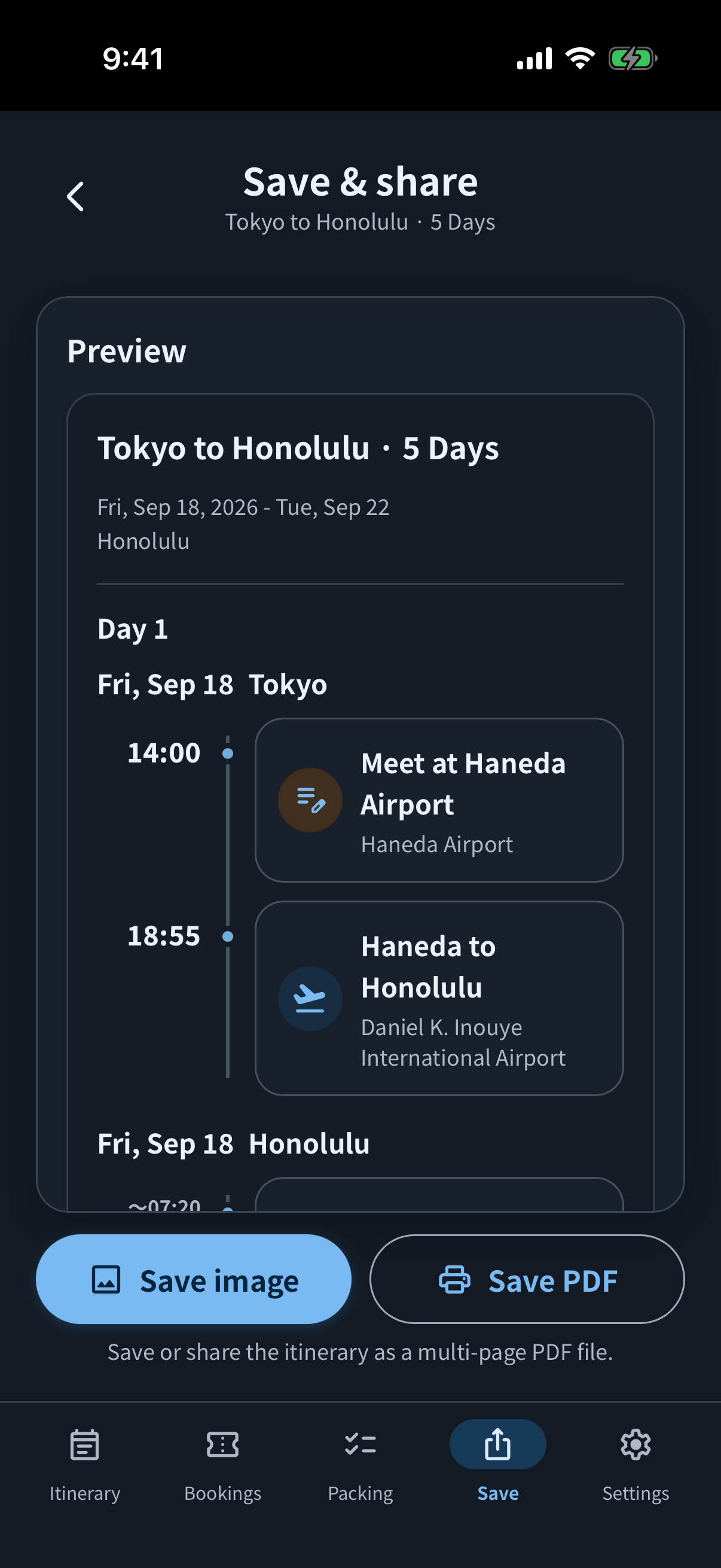
- Open ShareUse Share in the trip’s bottom menu or the top-right … menu. Check the date, meeting point, and time in the preview.
- Save an image or PDFChoose image or PDF saving. If LINE appears in the device share menu, choose the conversation. Otherwise save the file first and attach it in LINE or email. Steps depend on the receiving app.
- Check that the recipient can open itAndroid users can receive images or PDFs if they can open those files. Save a copy before departure so you can read it without a connection.
Edit together: requirements and getting started
Both the owner and participants need simrip’s iPhone or iPad app and internet access. iOS 17.0 or iPadOS 17.0 or later is required; check the App Store for current requirements. Android or a browser alone cannot join or edit.
Edit together conditions- Cost: The first trip is free per Apple Account. Later trips cost ¥500 including tax per trip in the Japanese App Store. Check the price before purchase.
- Participants: Up to 10 people including the owner. Invited participants do not need to make an extra purchase.
- Through the trip end dateEdit plans, bookings, and packing. New people can join.
- For 15 days afterwardExisting owners and editors can enter, correct, and settle Money.
- Then ends automaticallyEdit together ends. New people cannot join after the trip end date.
Start Edit together from the trip’s … menu and send the invitation link or QR code. Participants open it in the app and set a nickname.
More about shared data and conditionsUse “View & check” for people following the plan
People helping to plan
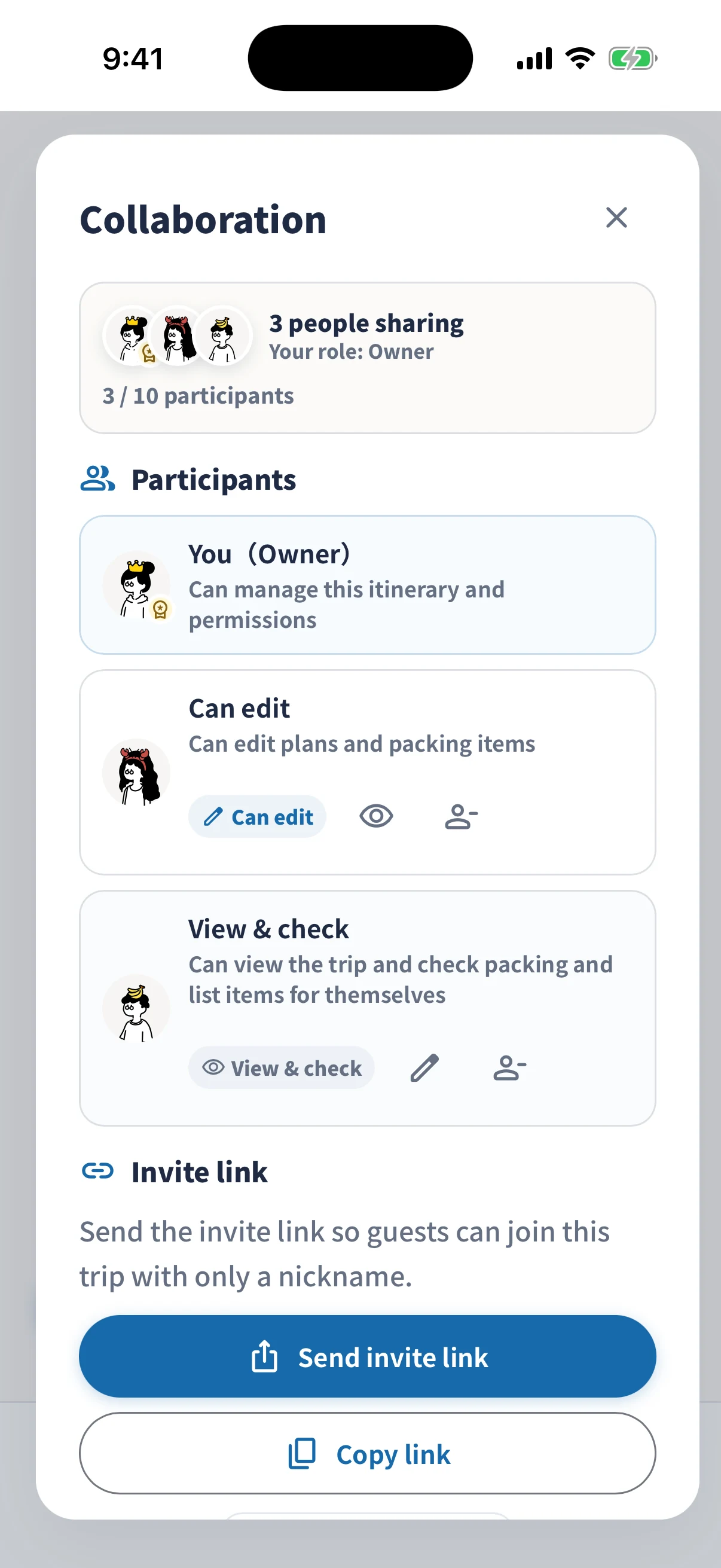
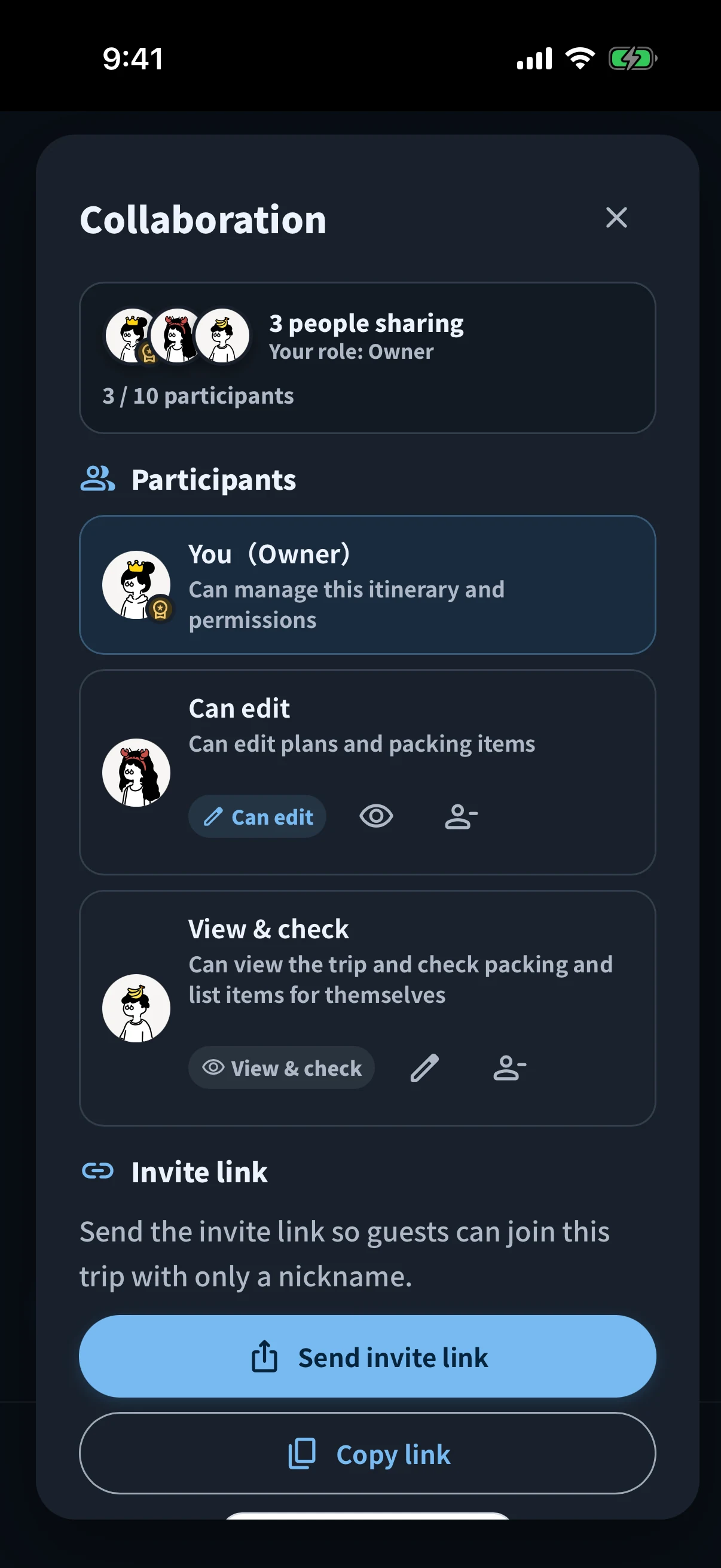
Participants with editing permission can update itinerary details, bookings, and packing items. This suits friends or family who are sharing the planning work.
People following plans and preparing their own things
The owner can change a participant’s permission to “View & check.” They can view the trip without changing its content and check their own packing and list items through the trip end date. The app and a connection are required.
If a connection check or error blocks editing, follow the notice on the screen to reconnect or retry. Wait for the connection to return before treating the visible plan as up to date.
An itinerary export is different from a booking attachment
An itinerary image or PDF may show booking details and attachment names or counts. It does not embed the attached confirmation image or original PDF itself. Text sharing does not include the attachment files either.
To give someone the actual ticket, share the relevant attachment with participants in Edit together, or send the original image or PDF separately. Check that the recipient can open the file they need.
Images, PDFs, and text do not update automatically. If a meeting point or time changes, export again and resend it with a note such as “Updated September 7” so the latest copy is easy to identify.
Share with care
An itinerary may contain sensitive details such as booking references, phone numbers, accommodation, and QR codes. Before sending, take a moment to check the recipients and contents.
- Are all recipients people who need this information?
- Is it appropriate to send the booking confirmations and QR codes to everyone?
- Have you selected the latest image or PDF?
- Have you kept the invitation link off broadly public social posts?