
Start with four categories
Transport
Flight or train, departure time, terminal, seat, and booking reference.
Accommodation
Property name, address, check-in, booking name, and payment status.
Meals and activities
Reservation time, number of people, meeting point, and cancellation terms.
Admission tickets
Date of use, QR code, number of people, how to present the ticket, and required ID.
Gather information from emails, booking apps, and photos in trip date order. Keep outdated booking confirmations somewhere separate.
Booking notes in simrip can hold booking references, phone numbers, URLs, amounts, and written notes. You can attach up to 10 images or PDFs per booking note. Use text for finding details and attachments for showing documents.
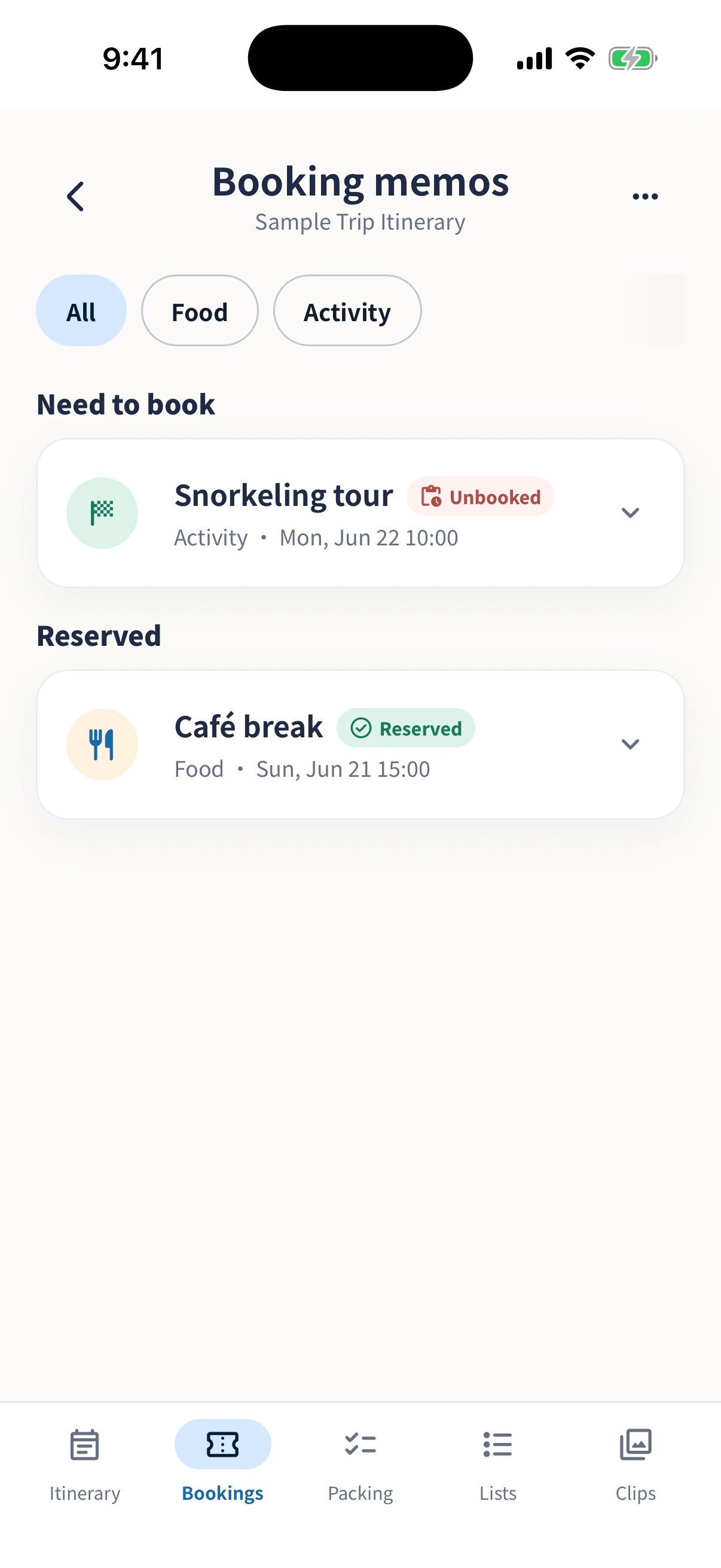
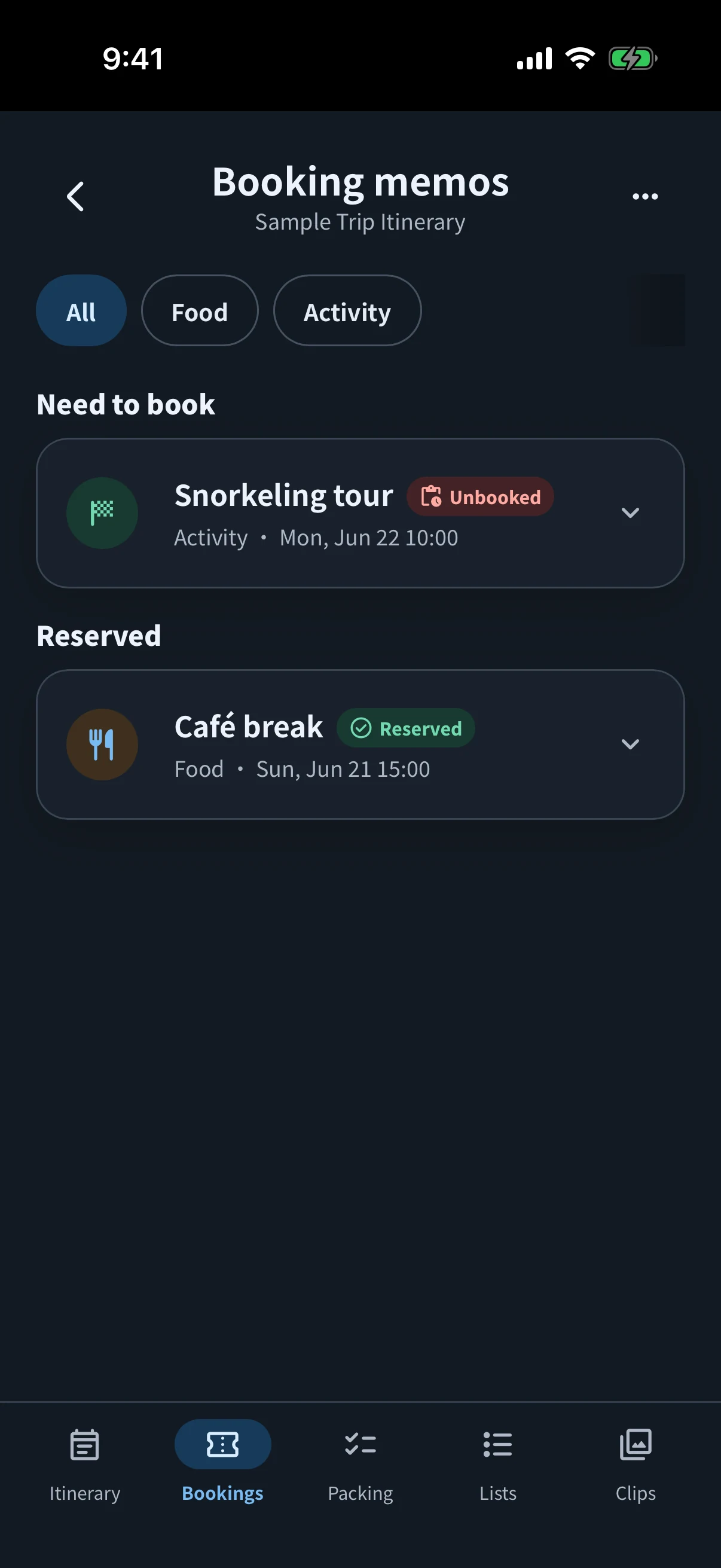
Add bookings so they are ready to open on the day
- Add booking information to the relevant planOpen a plan, such as your hotel stay or transport, and add booking information. Enter the reference, phone number, and URL; use the memo for the booking name and number of people.
- Separate “Need to book” from “Reserved”Use “Need to book” for arrangements still to make and “Reserved” once confirmed. The Bookings screen shows plans marked “Need to book” or “Reserved.” Information marked “No reservation needed” stays on the plan’s detail screen.
- Save the plan, then attach images or PDFsAdd tickets and confirmations with useful names such as “Day 1 hotel confirmation.” You can attach up to 10 files to one booking.
- Review both the details and files after a changeWhen a booking changes, check that its dates, reference, memo, and confirmation agree. Update the booking status yourself to match the information you have.
Keep insurance details too
When editing a saved plan or booking, choose “Add insurance information” to save the provider, policy number, URL, and notes. You can attach policy images or PDFs too.
Use a consistent note format
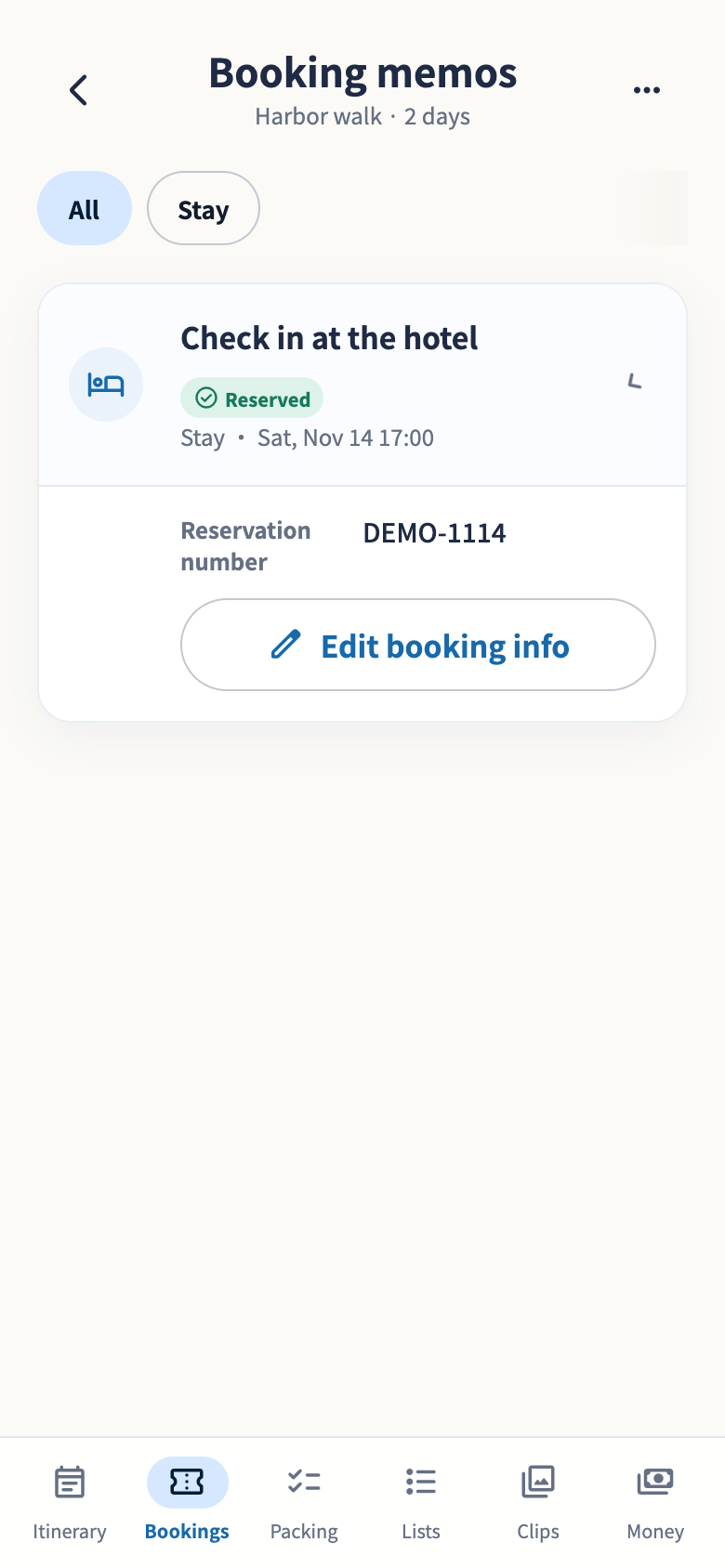
Check one hotel booking in three steps
- Keep the booking referenceOpen the plan, select Booked, and enter its reference.
- Add the confirmationSave the plan in the iPhone or iPad app, then attach the booking image or PDF.
- Open the original file to checkDo not rely only on a preview. Check whether you can open the files you need with the connection turned off.
This local screen demonstrates the booking reference. Adding attachments and opening their originals require the iPhone or iPad app.
Plan: Hotel check-in
Date and time: July 20, from 15:00
Booking name: Lead guest’s name
Booking reference: DEMO-1114 (replace with your own reference)
Contact and URL: Official contact or confirmation page
Note: Pay at the property / breakfast included
Attachment: booking-confirmation.pdf
Screen brightness and connectivity can affect how easily you can present a QR code. Check with the booking provider whether screenshots are accepted, and make sure you can open the official app or original PDF if needed.
Choose device-only storage or sharing with participants
Files only you need
Choose to save an attachment only on this device to keep it from being shared with participants. This is useful for your own ticket or other files the whole group does not need.
Files your companions need too
In Edit together, choosing to share with participants stores the attachment in the cloud so they can open it. You can also start a shared trip without sharing its existing attachments.
Uploading may still be in progress. Check that the attachment is shown as shared with participants. If sharing fails, check your connection and retry.
Check before departure
- Open essential attachments while connectedOpen each confirmation on your own device, including files shared by companions. Seeing a filename or small preview does not necessarily mean the original is saved on your device.
- Try opening them again without a connectionBefore departure, use airplane mode or otherwise disconnect and reopen the images and PDFs you need. If a file does not open, reconnect and prepare access through the original booking app or file as well. Follow the provider’s instructions for tickets that must be shown in its official app.
- The dates, number of people, and booking names match your itinerary
- Outdated files from changed or canceled bookings have been removed
- The QR codes you will present are valid
- You can open essential files without a connection
- You are sending companions only the information they need
- You have considered what to do if your device runs out of battery
Explore booking notes and attachments in simrip
Organize your bookings in simrip